
User Groups allow you to group users and control what they have access to as a group. You can configure a user group’s permissions and assign a query to it. The permissions are applied to all the associated users.
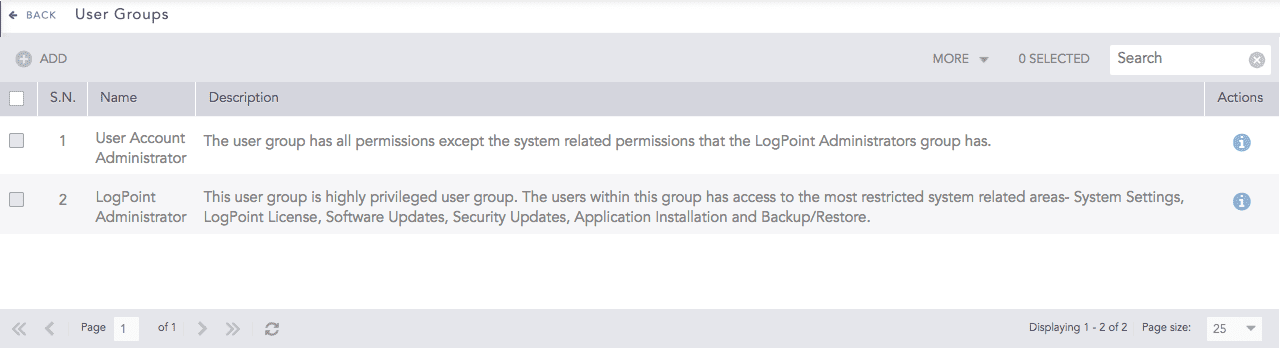
User Groups
There are two user groups by default.
The Logpoint Administrator group has access to all the available features and settings in Logpoint system.
The User Account Administrator group has all the permissions except the system-related permissions of the Logpoint Administrator user group.
You have to enable SOAR in Logpoint to configure SOAR-specific permissions for a particular user group. Once SOAR is enabled, the user group has access to all SOAR-specific permissions relevant to its permission group.
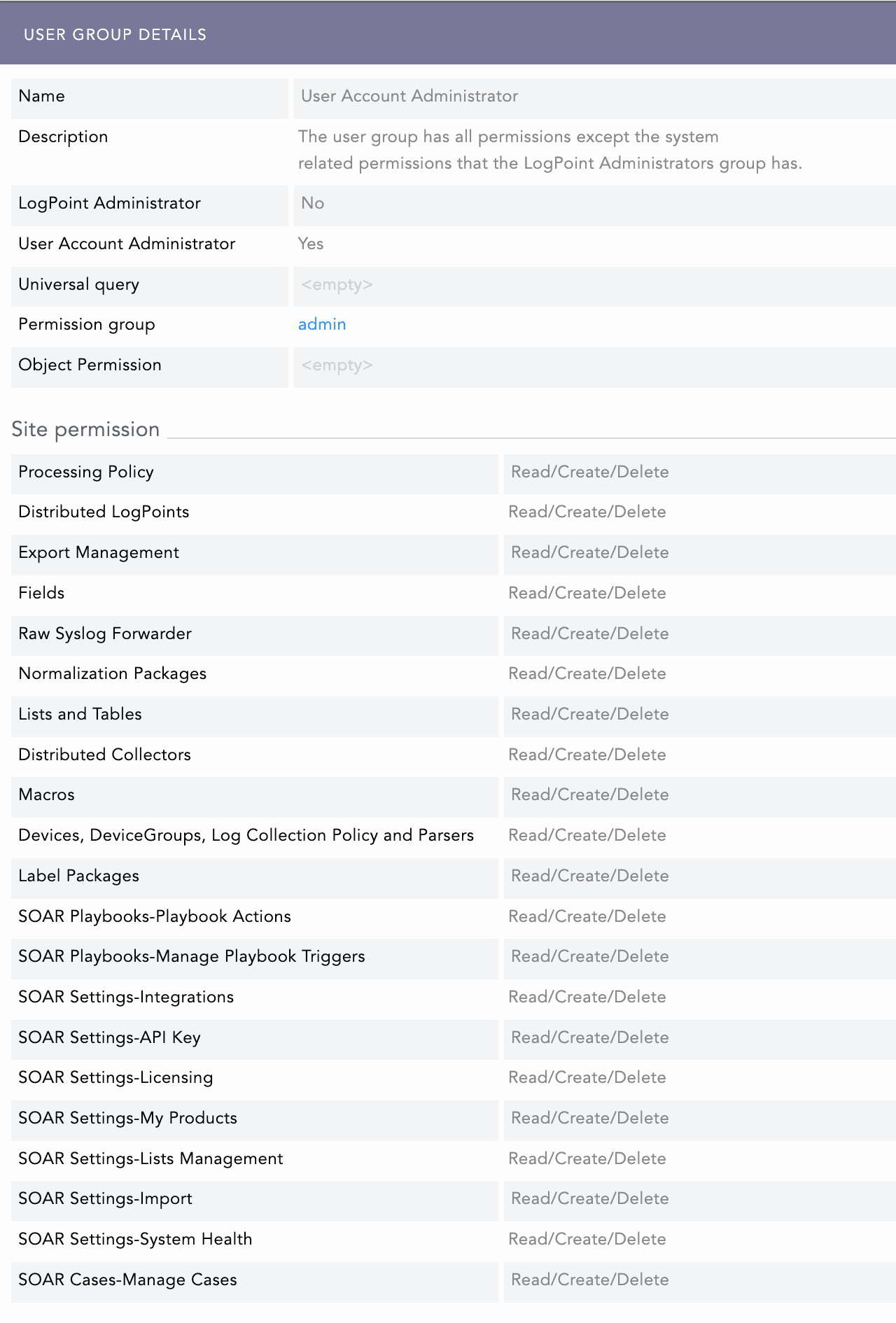
User Group Details
Note
You cannot edit or delete the default user groups.
The users in the User Account Administrator group cannot view the users in the Logpoint Administrator group.
Go to Settings >> User Accounts from the navigation bar and click User Groups.
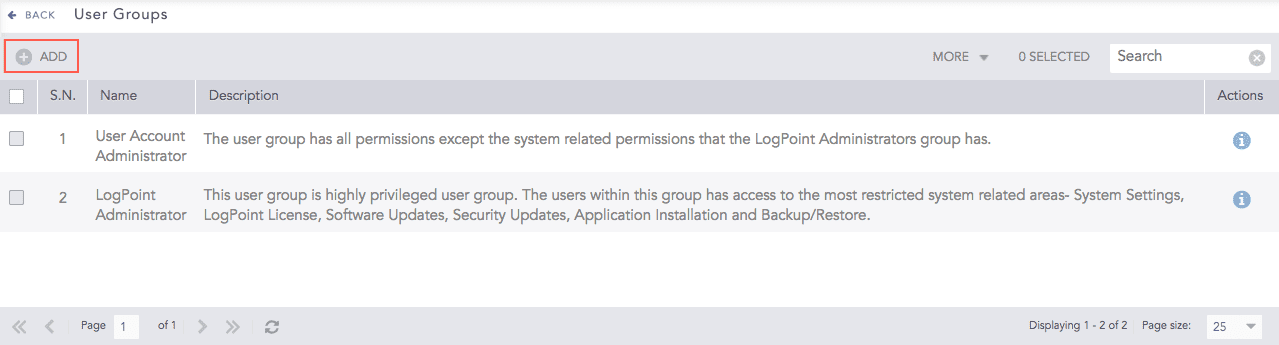
User Groups
Click Add.

Adding a User Group
Enter a Name and a Description.
Enter a Universal Query. Logpoint appends the universal query to each search query entered by the users of the group.
For example, if you enter col_type = syslog as a user group’s universal query and search the term login, the system searches for login in the result set of col_type = syslog. The search query is equivalent to col_type = syslog and login for the users in this group.
Select a Permission Group.
Click the Object Permission drop-down and select repos, devices, device groups, and IP addresses where users of the user group can search the logs.
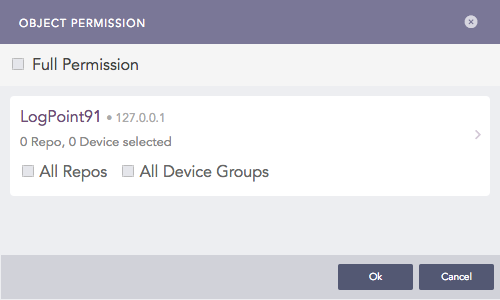
Object Permission
6.1. Select Full Permission to allow the user group to access all repos, device groups, devices, and IP addresses.
If you select Full Permission, all the repos, the device groups, and the devices added to the user group later are automatically considered in the object permission. This rule applies to any newly added Logpoint in the system.
6.2. Select All Repos to allow the user group to access all repos.
6.3. Select All Device Groups to allow the user group to access all the device groups, the devices, and the IP addresses of the system.
6.4. To select specific repos, device groups, devices, and IP addresses, click the > symbol.
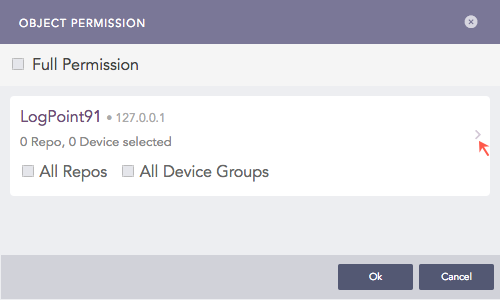
Devices and Repos Selector
SELECT REPO AND DEVICE lists how they are mapped. You can choose between All selected, None selected and Some selected from the accompanying checkbox.
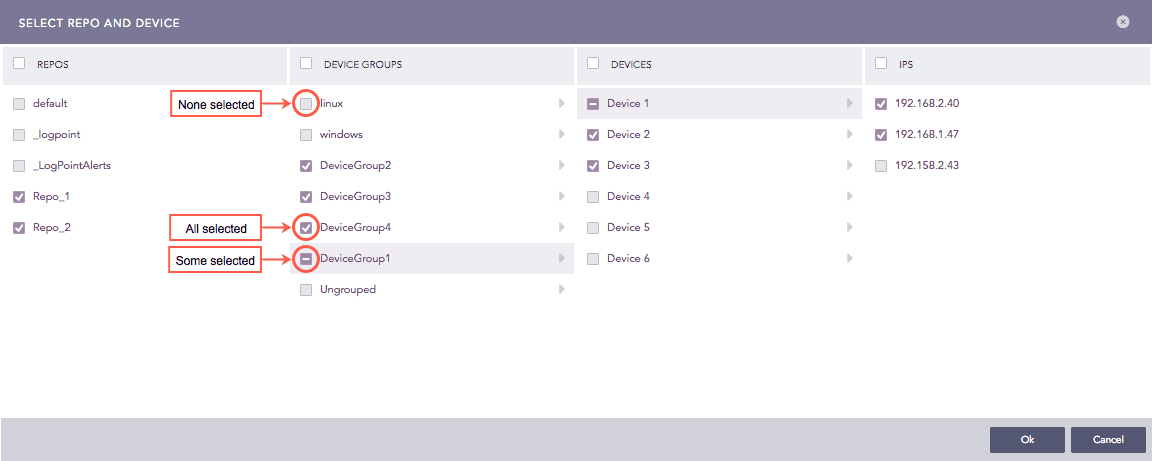
Repo, Device Groups, Devices, and IP Selector
Note
When you select All Selected for a device group, any device added to the group will automatically get the same object permissions.
Click Ok after making the necessary selections.
Click Submit.
Refer to Adding User Groups to an Incident User Group, Adding a User, and Mapping LDAP Groups to Logpoint User Groups to learn how user groups are used in Logpoint.
Note
Click the ? icon in the top-right corner to get help on the inputs.
Go to Settings >> User Accounts from the navigation bar and click User Groups.
Click the user group you want to edit.
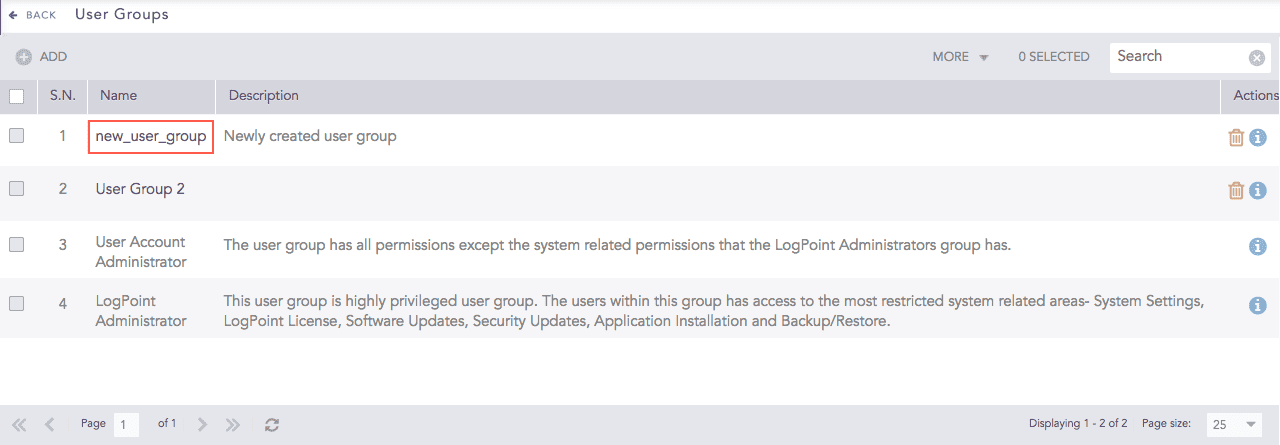
Editing a User Group
Update the information.
Click Submit.
Before deleting a user group, make sure it’s not in use.
Go to Settings >> User Accounts from the navigation bar and click User Groups.
Click the Delete icon from the Actions column.
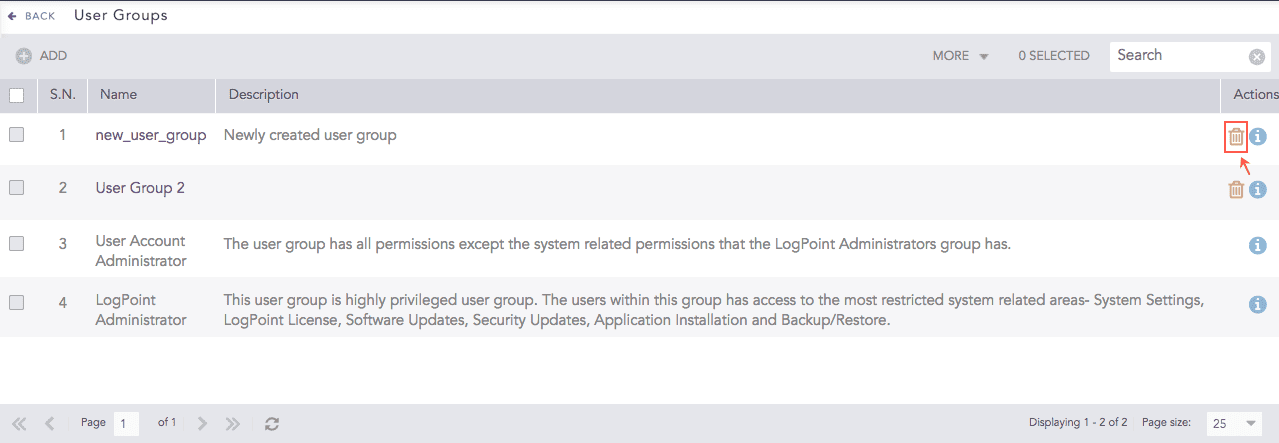
Deleting a User Group
To delete multiple user groups, select the user groups, click the More drop-down, and select Delete Selected.
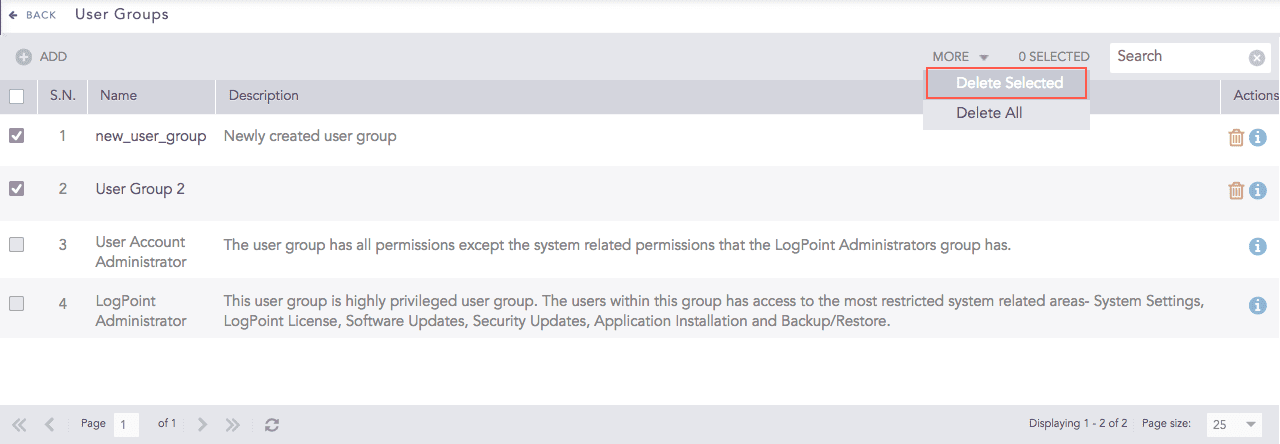
Deleting Multiple User Groups
To delete all the user groups, click the More drop-down and select Delete All.
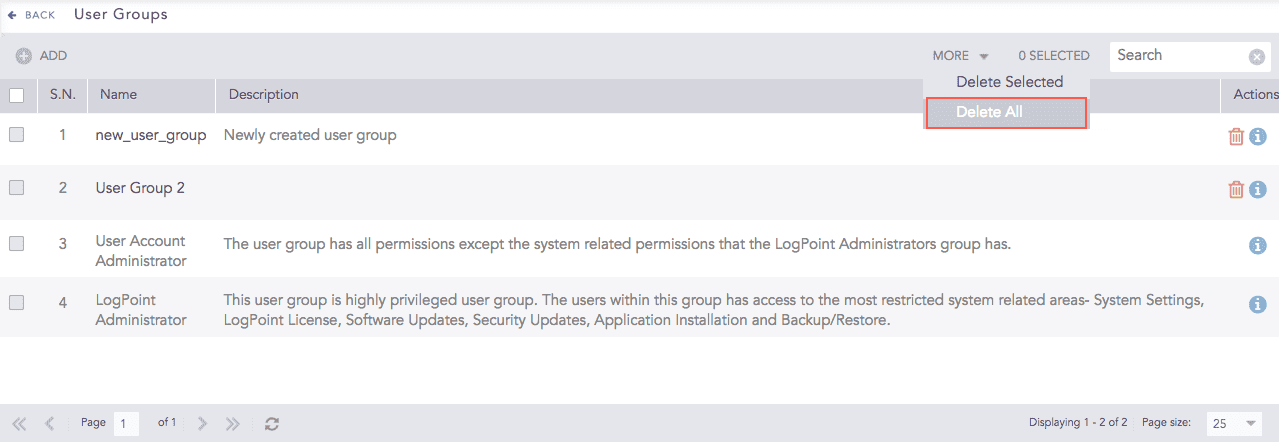
Deleting All User Groups
Click Yes to confirm.